Whether you want to turn your selfies into anime characters, create cinematic video effects, or join the latest viral TikTok trend, AI filters can transform ordinary content into eye-catching visuals. In this guide, we’ll explore how to generate professional-looking photos with top AI filters generator.
Here are 3 AI filter examples provided by the top AI filters generator - FlexClip
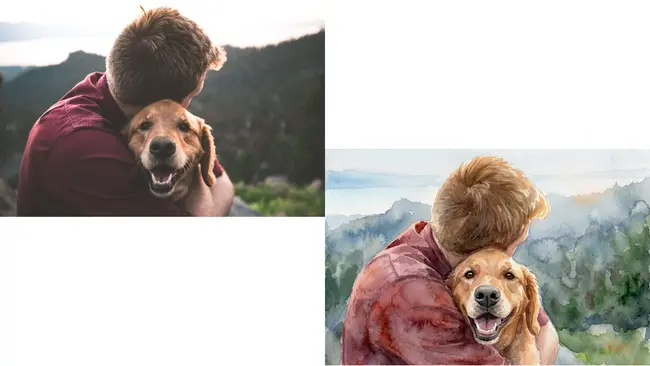
Example Image 1 - FlexClip
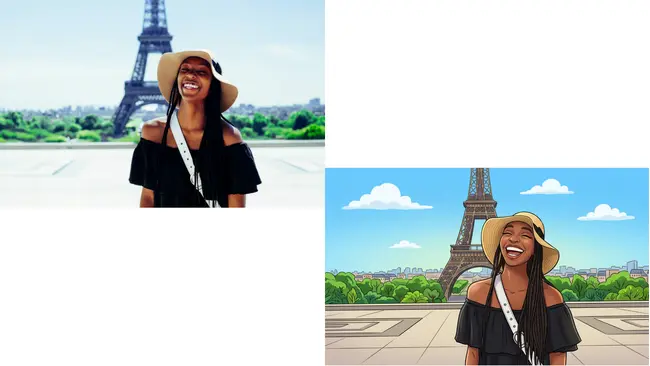
Example Image 2 - FlexClip
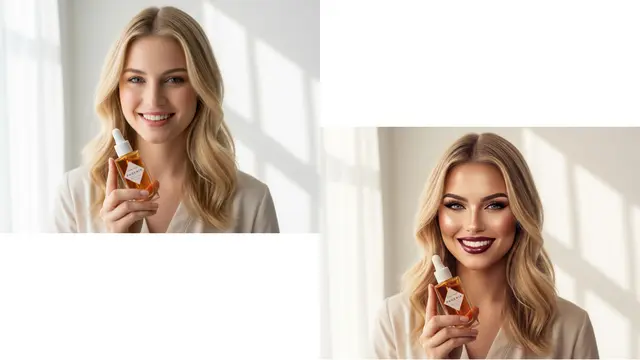
Example Image 3 - FlexClip
Part 1 The Excellent Online AI Filter Generator - FlexClip
Until now, FlexClip's AI Image to Image tool offers over 80 AI filters for users to transform their photos into different art. This Ai Image to Image generator is regularly updated with new styles and improvements, ensuring that you can catch up with the popular style transfer trend. Powered by advanced AI technology, it will identify the source image and transform it into a new style while keeping the original characteristics. Just import your photos to explore the power of AI magic.
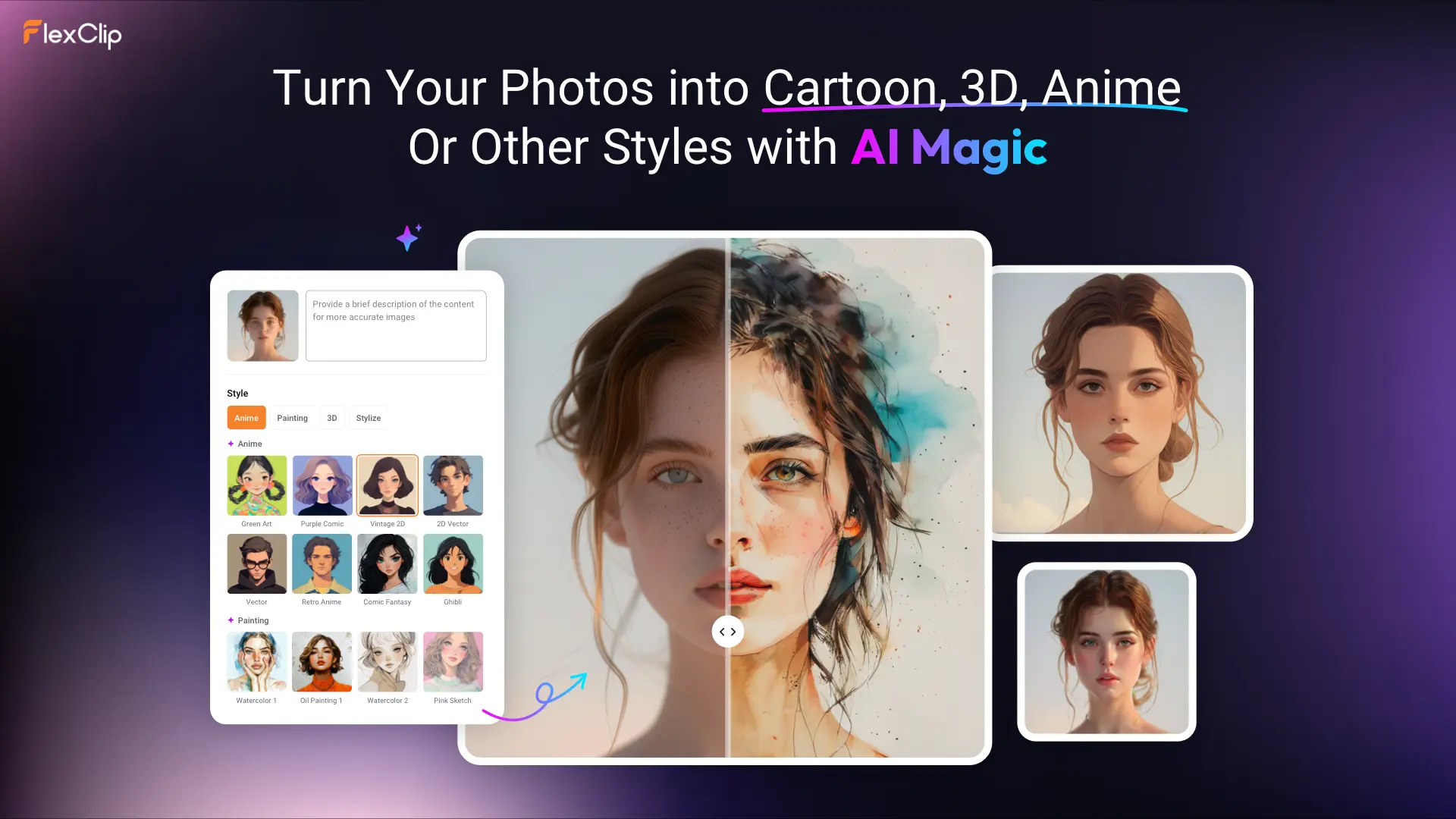
The Excellent Online AI Filter Generator - FlexClip
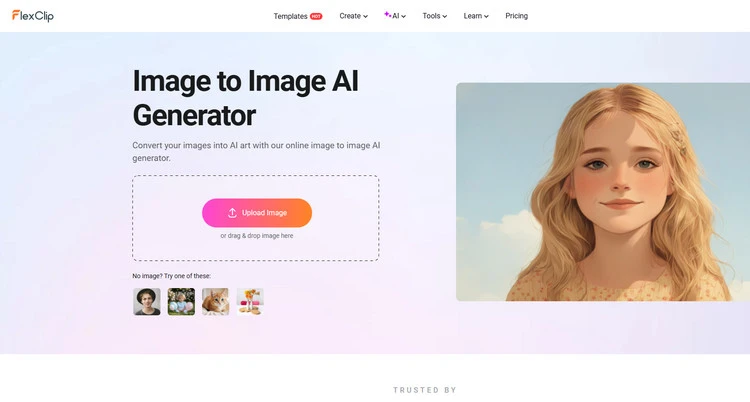
AI Image to Image Generator - FlexClip
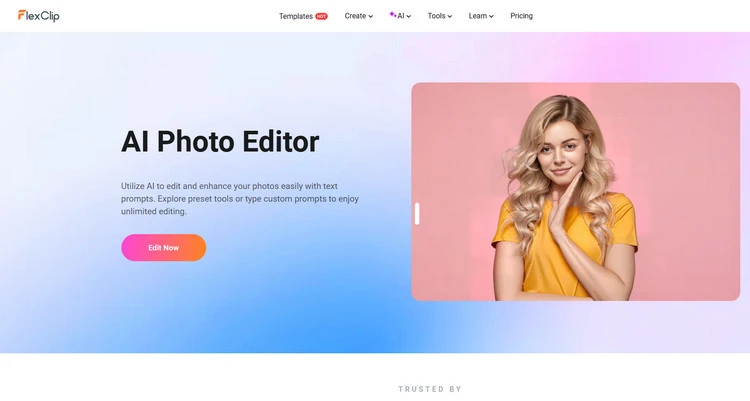
AI Photo Editor - FlexClip
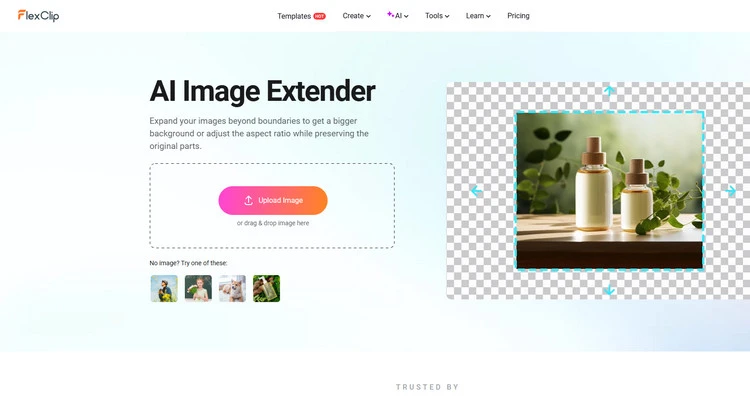
AI Photo Colorizer - FlexClip
Part 2 How to Add AI Filters to Image in FlexClip?
Ever wondered what you’d look like as a cartoon character, watercolor painting, anime hero, or fashion magazine cover star? With FlexClip’s AI filter generator, you can turn any ordinary photo into a stunning new style within seconds — no complicated editing, no design experience needed. Ready to give your photos a whole new personality? Follow the easy steps below and start creating your own AI-powered filter effects now.
Method 1 Add AI Filters to Image with Preset Options
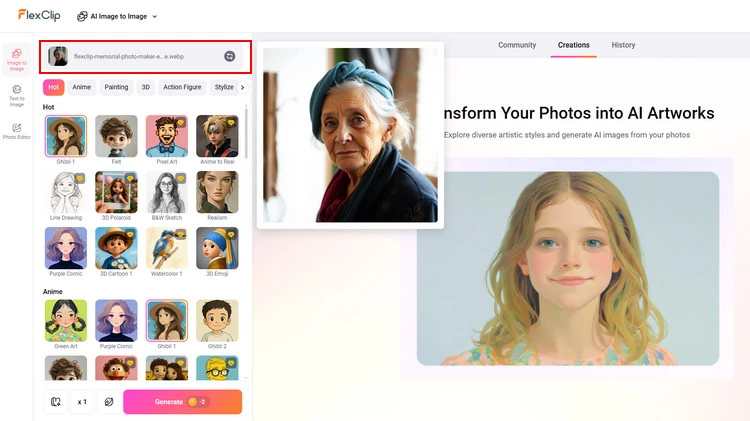
Upload Photos - FlexClip
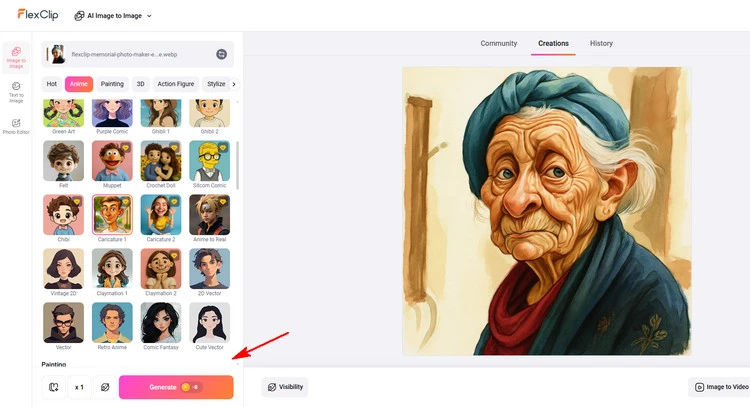
Add AI Filter to Photo - FlexClip
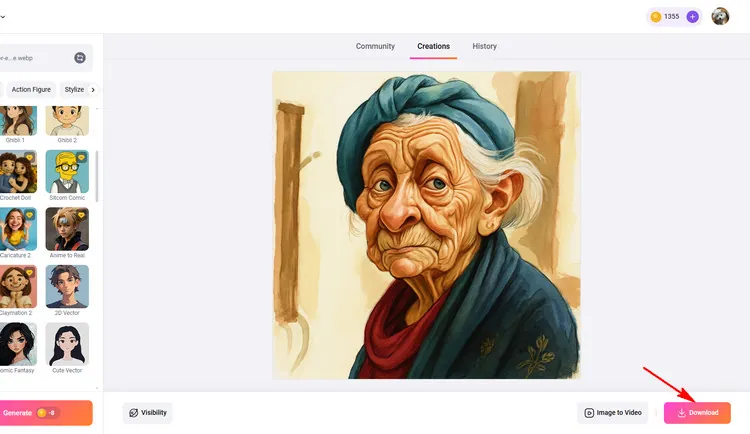
Download Your AI Filter Photo - FlexClip
Method 2 Add AI Filters to Image with Prompt
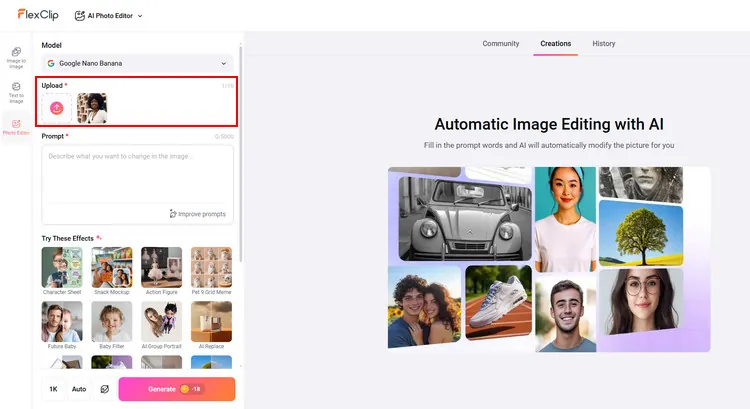
Upload Photos - FlexClip
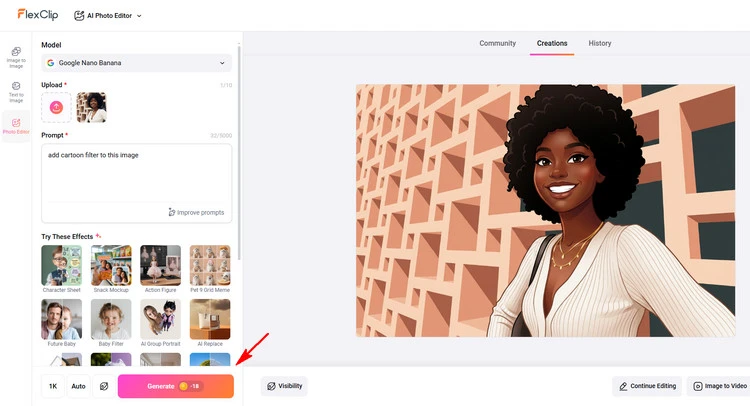
Add AI Filter to Photo - FlexClip
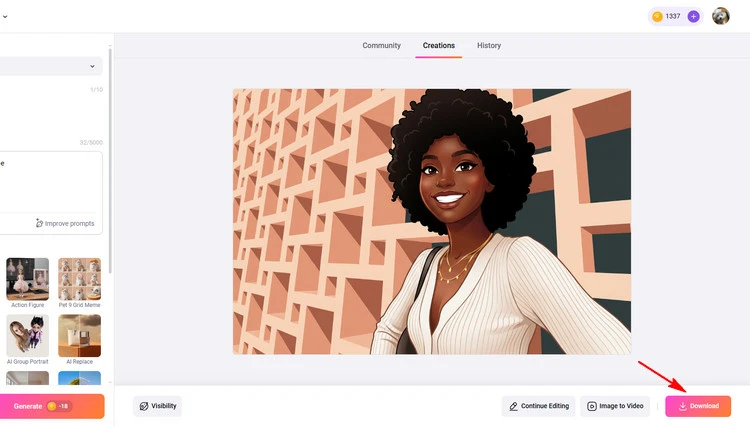
Download Your AI Filter Photo - FlexClip
Conclusion
That’s the end of how to add AI filter to image with online AI filter generator. I hope that you got your answers through this article regarding adding AI filters to your image online. Try it!




FlexClip AI Video Maker
Reach professional-quality videos faster with easy editing tools, templates, and smart AI.
Start Now for Free
Hot & Trending
-

Best Ways to Find Music in YouTube Videos
-
Instagram Story Video Quality Bad After Upload? Fix It!
-
How to Repost Video on TikTok & How to Remove TikTok Repost
-

Improve Video Quality Online: 3 AI Video Quality Enhancers You Can't Miss
-
4K Convert to HD 1080p without Watermark: Best 4k Video Converters
-
Best 8 Free Video Editors - No Download Required
-
Top 13 Birthday Video Makers with Music and Effects Free
-
How to Search Filters on TikTok & Use a Filter You See - TikTok Filter Guide